Streaming video is the single biggest data consumer on most mobile plans. A single hour of 1080p streaming uses ~1.5 GB of data, and 4K uses up to 7 GB/hour. If you're on a limited data plan (like Jio's 1.5 GB/day or 2 GB/day plans), you need to optimize.
NetMirror v6.0 includes several built-in tools to help you reduce data consumption by up to 70% without sacrificing too much viewing quality.
Data Usage by Quality Level
| Quality | Data per Hour | Data for 2-Hour Movie | Visual Quality |
|---|---|---|---|
| 4K HDR10 | ~7 GB/hr | ~14 GB | Ultra HD — best on 4K TVs |
| 1080p FHD | ~1.5 GB/hr | ~3 GB | Excellent — great on phones/tablets |
| 720p HD | ~800 MB/hr | ~1.6 GB | Good — fine on phone screens |
| 480p SD ⭐ | ~400 MB/hr | ~800 MB | Decent — recommended for mobile data |
| 360p | ~200 MB/hr | ~400 MB | Low — only for very limited plans |
Method 1: Set Different Quality for WiFi vs Mobile Data
This is the most effective data-saving technique. NetMirror lets you set separate quality defaults:
- Open NetMirror → tap ⚙️ Settings
- Go to "Video Quality"
- Set "WiFi Quality" → 1080p (or Auto for best experience)
- Set "Mobile Data Quality" → 480p (saves 70% vs 1080p)
- The app automatically switches quality based on your connection
For a detailed guide on all quality settings, see: How to Change Video Quality on NetMirror
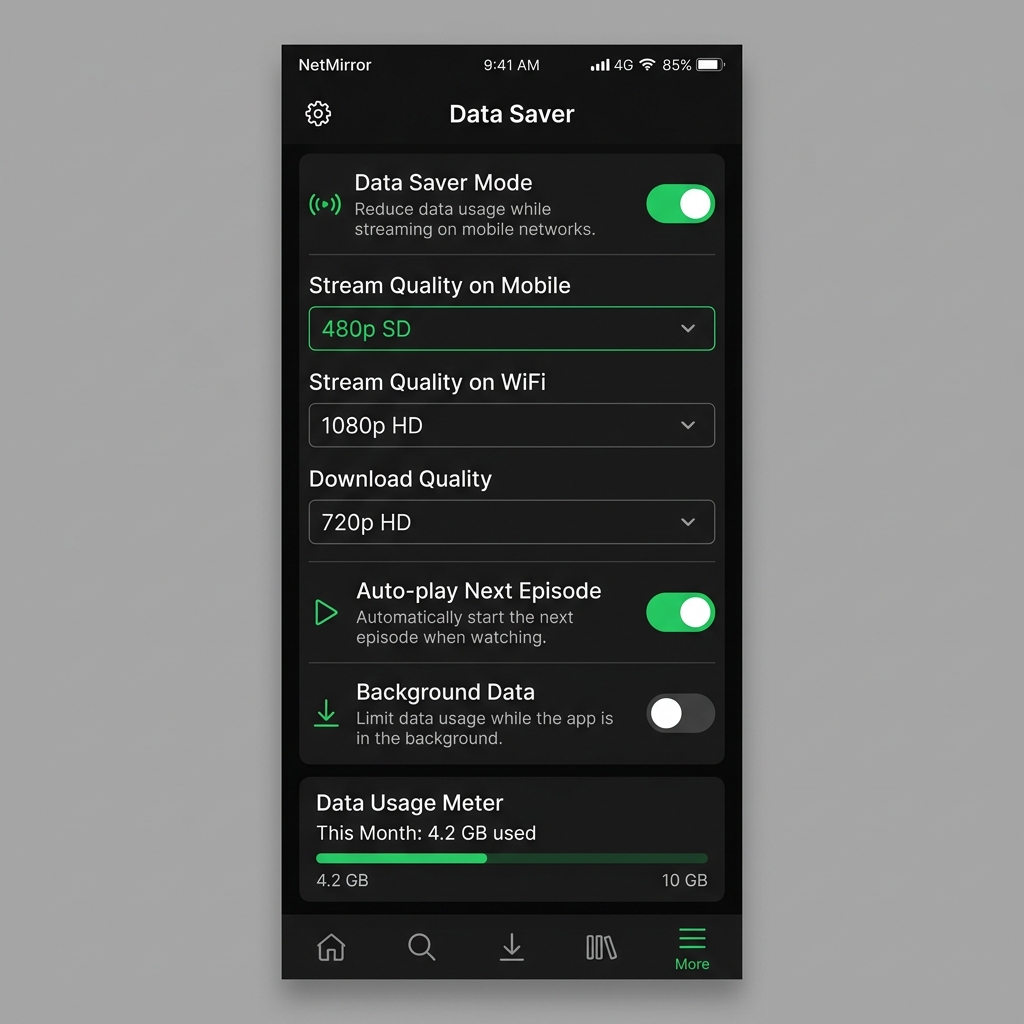
Method 2: Enable Data Saver Mode
NetMirror's built-in Data Saver mode reduces data consumption further by:
- Lowering the default streaming bitrate
- Reducing image thumbnail loading quality
- Disabling auto-play previews on the homepage
- Pausing background data usage
To enable: Settings → Data Saver → Toggle ON
Method 3: Download on WiFi, Watch on Mobile
The most data-efficient approach is to download content on WiFi and watch offline on mobile data:
- Connect to WiFi at home/office/café
- Open NetMirror and find content you want to watch
- Tap the 📥 Download button
- Select download quality (even 720p offline is better than 480p live)
- Watch later without using any mobile data
Full guide: How to Download Videos for Offline Viewing
Method 4: Set WiFi-Only Download
To prevent accidental large downloads on mobile data:
- Settings → "Download Settings"
- Enable "WiFi Only Downloads"
- This prevents any downloads from starting on mobile data
Method 5: Monitor Your Data Usage
NetMirror includes a built-in data usage tracker:
- Go to Settings → Data Usage
- View data consumed by streaming and downloads separately
- View daily, weekly, and monthly usage stats
- Set a monthly data limit — the app will warn you when you're approaching it
Data-Saving Tips by Plan Type
| Your Plan | Recommended Quality | Estimated Watch Time | Best Strategy |
|---|---|---|---|
| Jio/Airtel 1.5 GB/day | 480p | ~3.5 hours/day | Download on WiFi at night |
| Jio/Airtel 2 GB/day | 480p | ~5 hours/day | Download on WiFi + 480p live |
| Jio/Airtel 3 GB/day | 720p | ~3.5 hours/day | 720p is fine for most content |
| Unlimited WiFi | 1080p or 4K | Unlimited | Max quality, no restrictions |
| Very limited (<1 GB) | 360p | ~5 hours/day | Download on WiFi only |
Frequently Asked Questions
No! Subtitles are rendered as text overlays regardless of video quality. Even at 360p, subtitles remain crisp and readable. Subtitle quality is independent of video quality settings.
Yes — if you're casting via Chromecast, the quality also depends on your data saver settings. When casting to TV, we recommend temporarily disabling Data Saver and using WiFi for the best big-screen experience.
A 2-hour movie at 480p is approximately 800 MB. At 720p it's about 1.6 GB. At 1080p it's about 3 GB. We recommend downloading at 720p for a good balance of quality and storage. Download on WiFi to save mobile data.