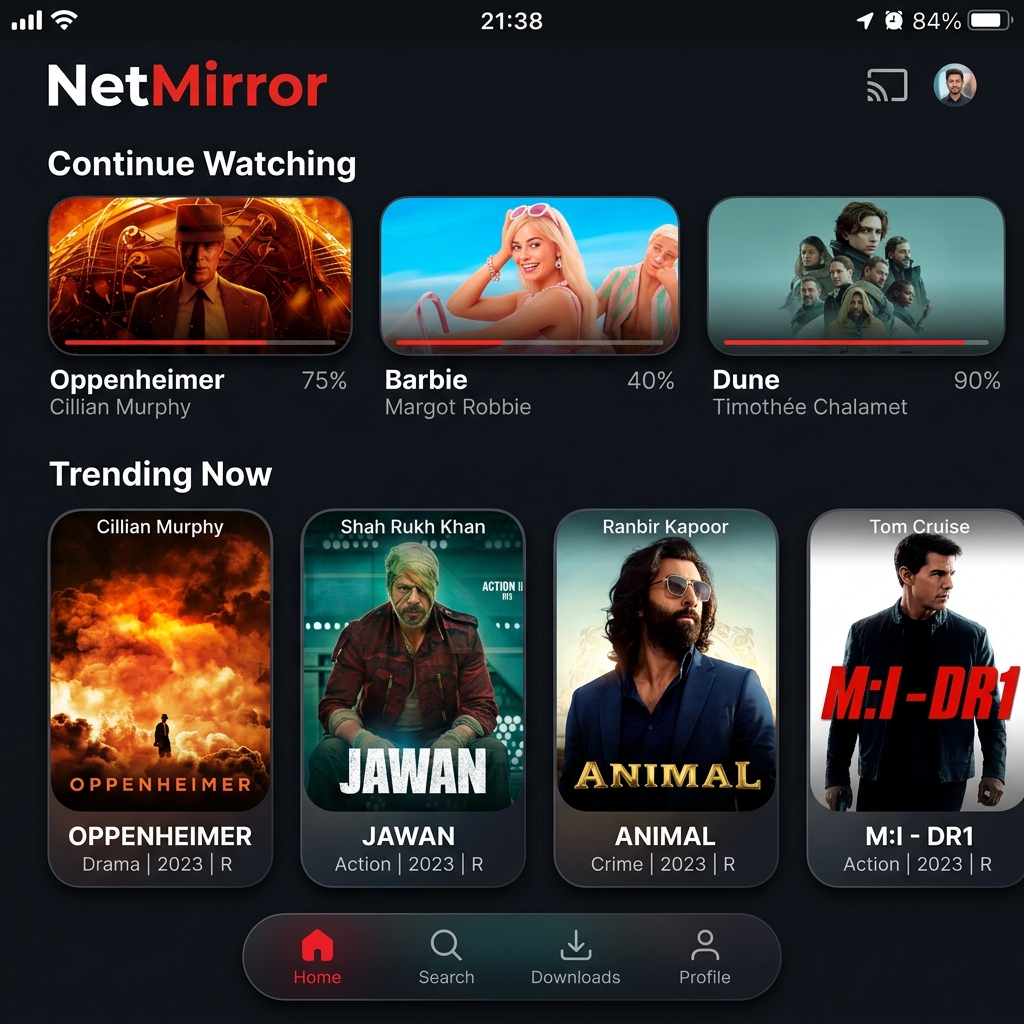
One of NetMirror's most powerful features is the ability to download movies and series for offline viewing. Whether you're planning a long flight, commuting on the train, or traveling to an area with poor internet, offline downloads ensure your entertainment never stops.
Prerequisites
Before you start downloading, make sure:
- You're running NetMirror v5.0 or later (offline downloads were added in v5.0). Download the latest v6.0
- You have NetMirror v5.0 or later installed — no account needed, downloads work instantly
- Your device has sufficient storage — a 2-hour movie in 1080p takes about 2-3 GB
- You're connected to WiFi (recommended to avoid high data usage)
Step 1: Find the Movie or Show You Want to Download
Open the NetMirror app and browse or search for the content you want. You can download:
- Full movies (any genre)
- Individual TV show episodes
- Entire seasons of a TV series (batch download)
- Anime episodes
- K-Drama episodes
Tap on the movie or show to open its detail page.
Step 2: Tap the Download Button
On the content detail page, you'll see two main buttons:
- ▶️ Play — Stream the video online
- ⬇️ Download — Save for offline viewing
Tap the ⬇️ Download button. If you're downloading a TV series, you'll be asked to select which episodes to download.
Step 3: Select Download Quality
A quality selection dialog will appear with these options:
| Quality | File Size (2hr movie) | Visual Quality | Recommended For |
|---|---|---|---|
| 480p (SD) | ~500 MB | Standard, acceptable | Low storage, phone viewing |
| 720p (HD) | ~1.2 GB | Sharp and clear | Best balance of size/quality |
| 1080p (FHD) | ~2.5 GB | Excellent, cinema-like | Tablet, PC, TV viewing |
Select your preferred quality and the download will begin. You'll see a progress bar showing the download status.
Step 4: Monitor Download Progress
To check the progress of your downloads:
- Tap the ☰ Menu icon or go to the bottom navigation
- Select "Downloads"
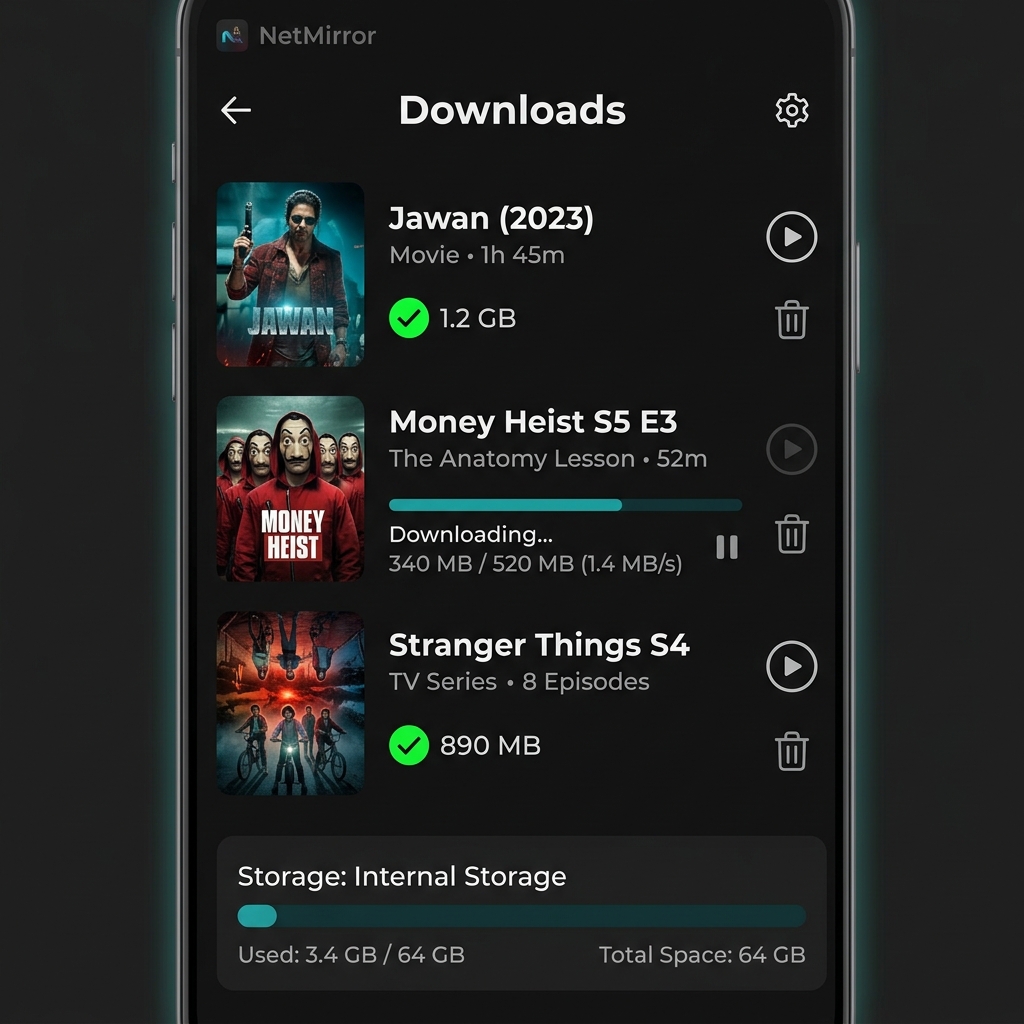
- You'll see all active and completed downloads with their progress percentage
You can pause and resume downloads at any time — useful if you need to switch from WiFi to mobile data.
Step 5: Watch Downloaded Content Offline
Once the download completes:
- Disconnect from the internet (airplane mode works)
- Open NetMirror → Go to "Downloads" tab
- Tap on the downloaded movie or episode
- It plays instantly without any internet connection
How to Download Entire TV Series Seasons
Downloading an entire season saves time:
- Open the TV show's detail page
- Select the season you want
- Tap "Download All Episodes" at the top of the episode list
- Select quality (this applies to all episodes)
- The app downloads episodes sequentially in the background
This is perfect for binge-watching sessions during travel!
Managing Downloaded Content
Delete Downloaded Videos
To free up storage space:
- Go to Downloads → Long-press the video → Tap "Delete"
- Or go to Settings → Storage → Clear Downloads to remove all at once
Change Download Location
By default, downloads are saved to your device's internal storage. To save to an SD card:
- Go to Settings → Storage
- Select "Download Location"
- Choose "SD Card" or "External Storage"
Set Download Quality Default
To avoid selecting quality every time:
- Go to Settings → Downloads → Default Quality
- Choose your preferred default (720p recommended)
- Future downloads will use this quality automatically
Download on Different Devices
Download on Android TV
The download feature works on Android TV devices too, but make sure you have enough storage on your TV box (most have limited internal storage). Use a USB drive for extra space.
Download on PC (via BlueStacks)
If you're using NetMirror on PC via BlueStacks, downloaded files are saved within the emulator's virtual storage. You can access them from BlueStacks' file manager.
Troubleshooting Download Issues
Download Button Not Showing
- Make sure you're logged into your account — downloads require authentication
- Update to NetMirror v6.0 or later
- Some live content (sports, live TV) cannot be downloaded
Download Fails or Stops
- Check your internet connection — downloads need stable connectivity
- Check available storage — your device might be full
- Try clearing the app cache and restarting the download
- Switch to a different server if the download is slow
Downloaded Video Won't Play
- Restart the app — sometimes a fresh start fixes playback issues
- Check if the download expired (30-day limit)
- Try re-downloading the content
- For more solutions, see our NetMirror not working fix guide
Frequently Asked Questions
There's no limit on the number of downloads. You're only limited by your device's available storage space. Most users can store 20-50 movies in 720p quality on a standard 64GB phone.
No, downloaded content is tied to the device it was downloaded on for security reasons. You'll need to download separately on each device.
Yes! When you download a video, all available subtitle languages are included. You can switch subtitle languages during offline playback just like you would during streaming.
Yes, but it's not recommended for large files. A 1080p movie uses ~2.5 GB. To enable mobile data downloads, go to Settings → Downloads → Allow Mobile Data Downloads. We recommend using WiFi to save data.