Watching movies on your phone is great, but nothing beats the big screen experience. NetMirror v6.0 supports multiple casting methods that let you stream content from your phone directly to your Smart TV — no need to install the app on your TV.
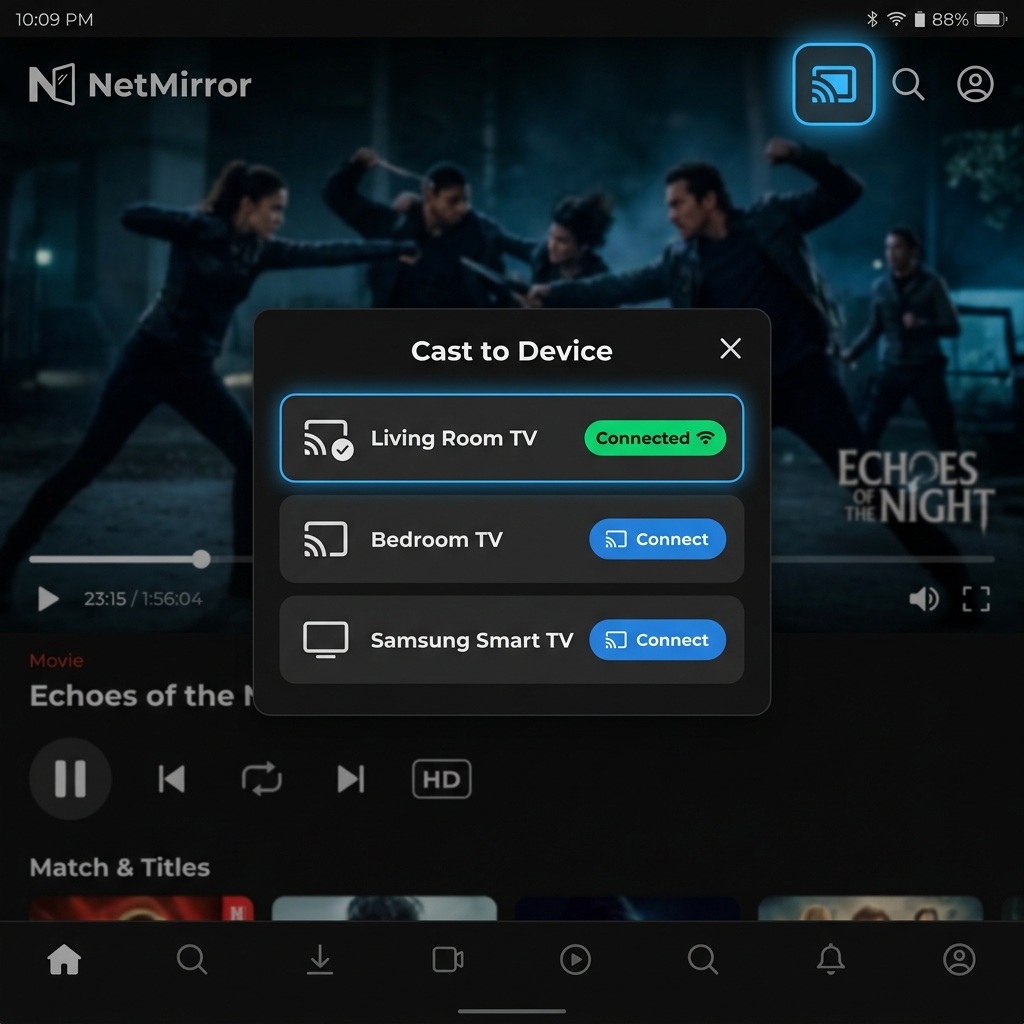
Method 1: Chromecast (Recommended)
If your TV has built-in Chromecast (most Android TVs, Google TVs) or you have a Chromecast dongle, this is the easiest method.
Requirements
- Smart TV with built-in Chromecast OR a Chromecast device
- Both phone and TV on the same WiFi network
- NetMirror v5.0+ (v6.0 recommended for best quality)
Step-by-Step
- Connect to WiFi — Ensure your phone and Smart TV are on the same WiFi network. This is critical — casting won't work across different networks.
- Open NetMirror — Launch the app and find the movie or show you want to watch.
- Start Playing — Tap the Play button to begin streaming on your phone.
- Maximize Video — Tap to go full screen mode.
- Tap Cast Icon — Look for the 📺 cast icon in the top-left corner of the media player. It looks like a screen with a WiFi signal.
- Select Your TV — A list of available devices will appear. Tap your Smart TV's name.
- Wait for Connection — The video will briefly pause, then start playing on your TV within 5-10 seconds.
- Control from Phone — Your phone becomes a remote. You can play/pause, seek, change quality, and adjust volume from your phone.
Method 2: Screen Mirroring
Screen mirroring (also called Smart View on Samsung, Cast Screen on stock Android, or Miracast) mirrors your entire phone screen to the TV.
Step-by-Step
- Pull down the notification shade on your Android phone
- Tap "Screen Mirror", "Smart View", or "Cast" (name varies by brand)
- Select your Smart TV from the list
- Your entire phone screen now appears on the TV
- Open NetMirror and play your video — it shows on both screens
Method 3: HDMI Cable (Most Reliable)
For the most stable and highest quality connection, use a USB-C to HDMI cable or adapter.
Step-by-Step
- Get a USB-C to HDMI adapter (available for ₹300-500 on Amazon)
- Connect the USB-C end to your phone
- Connect the HDMI cable from the adapter to your TV's HDMI port
- Switch your TV input to the correct HDMI channel
- Your phone screen appears instantly on the TV — no WiFi needed
- Open NetMirror and play at full 1080p or 4K quality
Advantages of HDMI
- No WiFi needed — Works anywhere
- Zero latency — No delay between phone and TV
- Best quality — Supports up to 4K 60fps
- Most reliable — No buffering or disconnection issues
Method 4: DLNA (For Tech-Savvy Users)
DLNA is a media streaming protocol supported by most Smart TVs. While NetMirror doesn't natively support DLNA, you can use third-party apps like BubbleUPnP or LocalCast to stream NetMirror content via DLNA.
Casting to Specific TV Brands
| TV Brand | Best Method | Built-in Feature |
|---|---|---|
| Samsung Smart TV | Smart View + Chromecast | Smart View (Screen Mirror) |
| LG WebOS TV | Screen Share + Chromecast | LG Screen Share |
| Xiaomi Mi TV | Chromecast (built-in) | Built-in Chromecast |
| Sony Bravia | Chromecast (built-in) | Built-in Chromecast |
| TCL / Hisense | Chromecast (most models) | Built-in Chromecast |
| Amazon Fire TV Stick | Install app directly | Install NetMirror on FireStick |
| Non-Smart TV | HDMI cable from phone | Use USB-C to HDMI adapter |
Tips for the Best Casting Experience
- Use 5GHz WiFi — The 5GHz band has less interference and higher bandwidth than 2.4GHz, resulting in smoother streaming.
- Close other apps — Background apps consuming bandwidth can cause buffering during casting.
- Set quality before casting — Change video quality to 1080p before tapping the cast button for the best big-screen experience.
- Keep phone charged — Casting drains battery faster. Keep your phone plugged in during long movie sessions.
- Lock your phone — Once casting via Chromecast, you can lock your phone and the video continues playing on the TV.
Troubleshooting Casting Issues
TV Not Showing in Cast List
- Verify both devices are on the same WiFi network
- Restart your WiFi router
- Restart both your phone and TV
- Make sure your TV's Chromecast/casting feature is enabled in TV settings
Video Plays on Phone But Not on TV
- Try switching to a lower quality (720p instead of 1080p)
- Close other apps on your phone
- Switch to 5GHz WiFi if available
- Try the screen mirroring method instead of Chromecast
Subtitles Not Showing on TV
- This is a known limitation with Chromecast casting — subtitles may not always transfer
- Solutions: Use screen mirroring instead (subtitles always work), or use HDMI cable for perfect subtitle support
- Alternatively, install NetMirror directly on your TV for native subtitle support
Audio/Video Out of Sync
- This usually indicates network congestion. Try lowering video quality.
- Pause and resume the video
- Disconnect and reconnect the casting session
Frequently Asked Questions
If you're using NetMirror via the Safari web app on iPhone, you can use AirPlay to cast to an Apple TV or AirPlay-compatible Smart TV. For non-Apple TVs, use a Lightning to HDMI adapter.
No, casting doesn't use extra data. The video is streamed from the internet once — your phone simply tells the TV what to play. If you're on WiFi, there's no mobile data usage at all.
With Chromecast casting, yes — you can use other apps, make calls, or even lock your phone while the video plays on TV. With screen mirroring, no — your phone screen must stay active and showing the video.
Chromecast supports up to 4K HDR. Screen mirroring typically maxes out at 1080p. HDMI cable supports up to 4K 60fps with the right adapter. For the best quality, use HDMI or install NetMirror directly on your TV.