NetMirror has access to content from 50+ OTT platforms, which means the library includes everything from children's cartoons to adult-rated content. If your children use the same device, setting up parental controls is essential.
NetMirror v6.0 includes a comprehensive parental control system that lets you filter content by age rating, lock mature content behind a PIN, and set screen time limits.
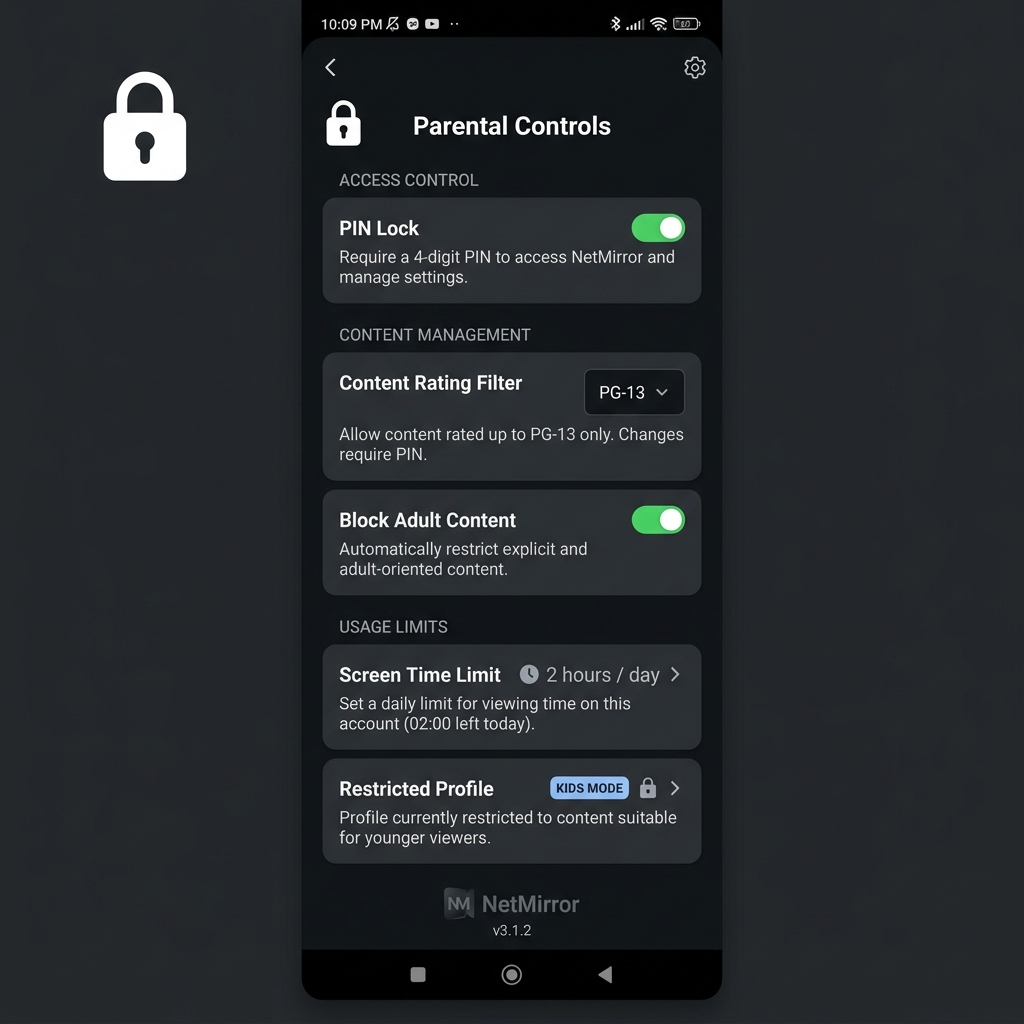
Step 1: Enable Parental Controls
- Open NetMirror and go to ⚙️ Settings
- Scroll to "Parental Controls"
- Tap "Enable Parental Controls"
- Create a 4-digit PIN that only you (the parent) know
- Confirm the PIN
Once enabled, the PIN will be required to:
- Access content rated above your set limit
- Change parental control settings
- Disable parental controls
Step 2: Set Age Rating Limit
| Rating | Age Range | Content Allowed | Content Blocked |
|---|---|---|---|
| U (Universal) | All ages | Children's shows, cartoons, family movies | Everything else |
| U/A 7+ | 7 years+ | + Mild fantasy, light action | Violence, romance, horror |
| U/A 13+ | 13 years+ | + Teen dramas, moderate action, PG-13 | Adult content, graphic violence |
| A (Adult 18+) | 18 years+ | All content (unrestricted) | Nothing blocked |
Recommendation: Set to U/A 7+ for children under 10, and U/A 13+ for teenagers.
Step 3: Block Specific Categories
Beyond age ratings, you can block entire content categories:
- Horror — Blocks all horror movies/shows
- Crime/Thriller — Blocks crime dramas and thrillers
- Romance — Blocks romance-heavy content
- Documentary (Adult) — Blocks true-crime and sensitive documentaries
Toggle each category on/off in Settings → Parental Controls → Category Filters.
Step 4: Set Screen Time Limits (Optional)
NetMirror includes a screen time feature to limit how long your children can watch:
- Go to Settings → Parental Controls → Screen Time
- Set a daily limit (e.g., 1 hour, 2 hours, 3 hours)
- When the limit is reached, playback pauses and a PIN is required to continue
- The timer resets at midnight daily
Step 5: Lock the Settings
After configuring everything, make sure your children can't change the settings:
- The PIN is required to access parental control settings
- The PIN is required to disable parental controls
- Don't share your PIN with your children
- If you forget your PIN: uninstall and reinstall the app (this resets all settings)
Kids-Friendly Content on NetMirror
When parental controls are active, your children can still enjoy a huge library of kid-safe content:
| Category | Popular Titles |
|---|---|
| Animated Movies | Frozen, Moana, Inside Out 2, Coco, Toy Story, Finding Nemo |
| Cartoon Shows | SpongeBob, Tom & Jerry, Doraemon, Shin Chan, Motu Patlu |
| Anime (Kid-safe) | Pokémon, Dragon Ball (censored), My Hero Academia, Doraemon |
| Indian Kids | Chhota Bheem, Little Singham, Rudra, Kris, Mighty Raju |
| Educational | Planet Earth, Our Planet, Cosmos, National Geographic docs |
Frequently Asked Questions
NetMirror v6.0 doesn't have separate user profiles like Netflix. Instead, use the parental PIN system — adults enter the PIN to access restricted content, while children can browse freely within the age-appropriate library.
If you forget your PIN, the only option is to uninstall and reinstall NetMirror. This resets all settings including parental controls. Your watchlist may be lost, so consider exporting your data before resetting.
Yes, parental controls work on Android phones, tablets, Android TV, and FireStick. Settings are device-specific — you'll need to set up parental controls on each device separately.